Where the snippet goes, and where it does not
The snippet only works inside a theme code file. You reach those through Online Store, Themes, Edit code. It does not work in the product description, in a page, in a blog post, or in a theme "Custom HTML" block. Shopify does not run the {{ product.id }} part in those places, so the calendar never learns which product it is on and stays blank.
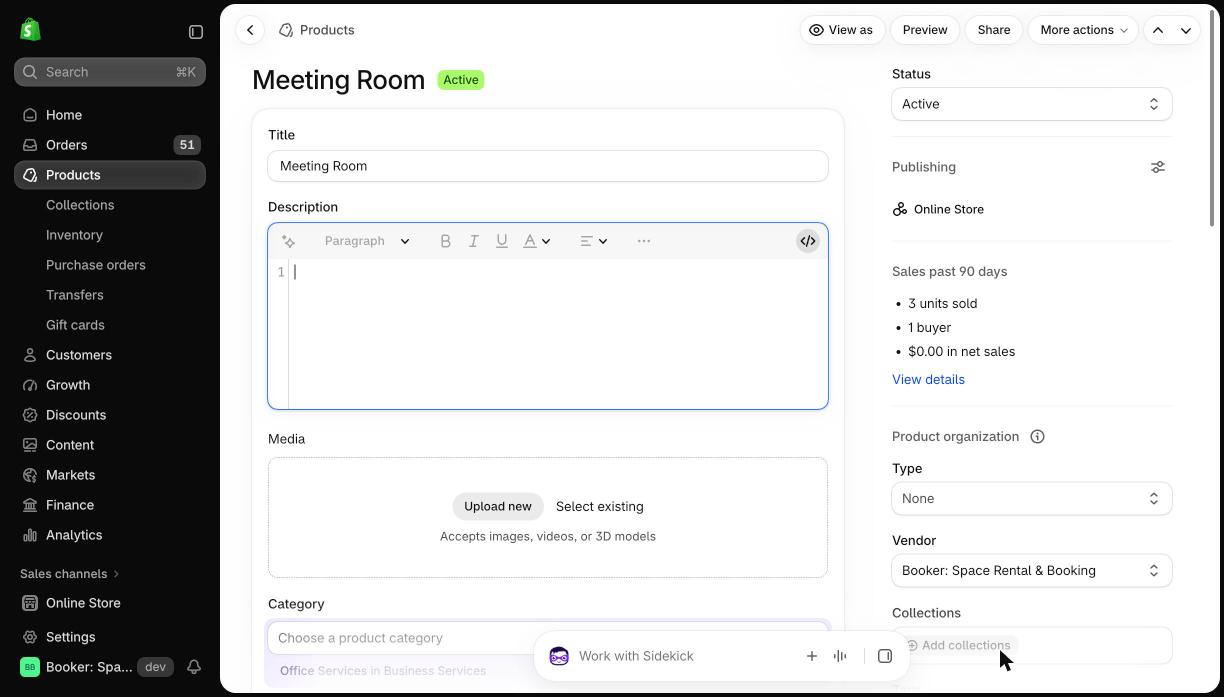
Open the theme code editor
- 1Go to your themes
In your Shopify admin, click Online Store, then Themes.
- 2Make a copy to work on
On the theme marked Current, click the three dots, then Duplicate. Edit the copy and publish it once the calendar works. Your live store is never half done.
- 3Open the code editor
On the copy, click the three dots, then Edit code.
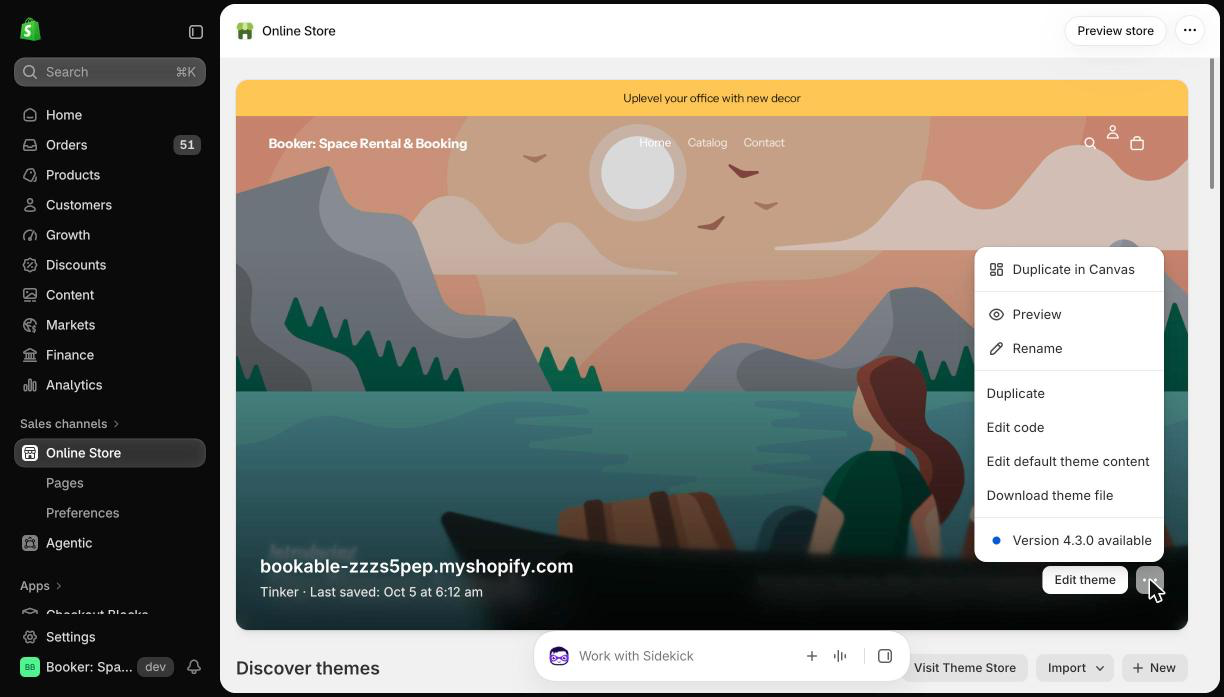
Paste the calendar into the product section
- 1Find the product section file
In the list on the left, open the Sections group. On Dawn and most themes the file is main-product.liquid. On Horizon, Shopify's current default theme, it is product-information.liquid. If you are not sure, type "product" in the search box at the top of the list.
- 2Find the right line
On Dawn, scroll until you see the block that draws the add to cart button, usually named buy_buttons. On Horizon, scroll near the bottom to the line that starts with {% render 'product-information-content'. Either way, the snippet goes on a new line right after it.
- 3Paste the snippet
Paste the two lines below on their own lines, just after that block or render line.
- 4Save
Click Save at the top right.
<booking-calendar data-proxy="/apps/booking" data-product-id="gid://shopify/Product/{{ product.id }}"></booking-calendar>
<script src="/apps/booking/embed.js" defer></script>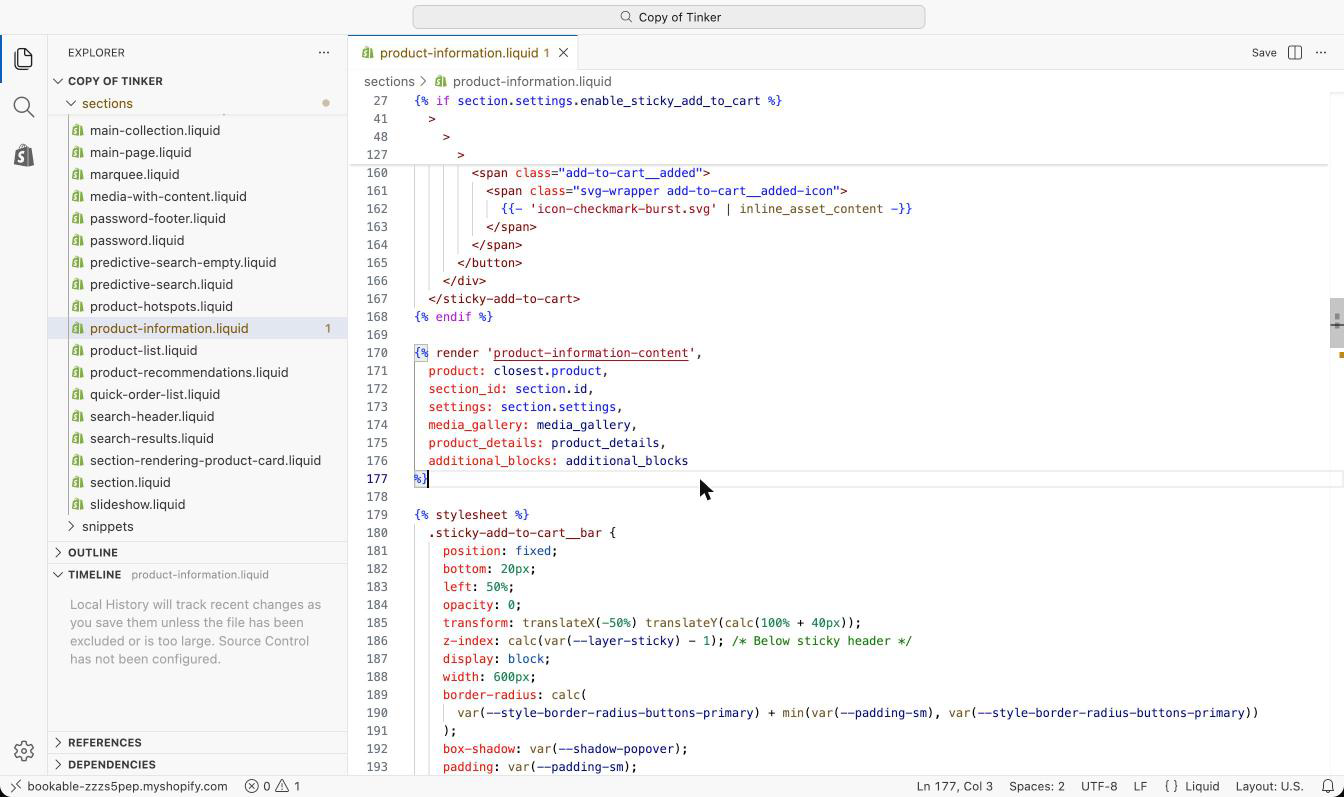
Load the script on every page
A customer picks Saturday at 10 on a product page and goes to the cart. Booker holds that time for them while they pay. The cart guard keeps the hold valid on the cart page, and the cart page only has the script if theme.liquid loads it.
- 1Open theme.liquid
In the list on the left, open the Layout group and click theme.liquid.
- 2Paste the script tag
Scroll to the bottom of the file. Paste the one line below on its own line, just above </body>.
- 3Save
Click Save at the top right.
<script src="/apps/booking/embed.js" defer></script>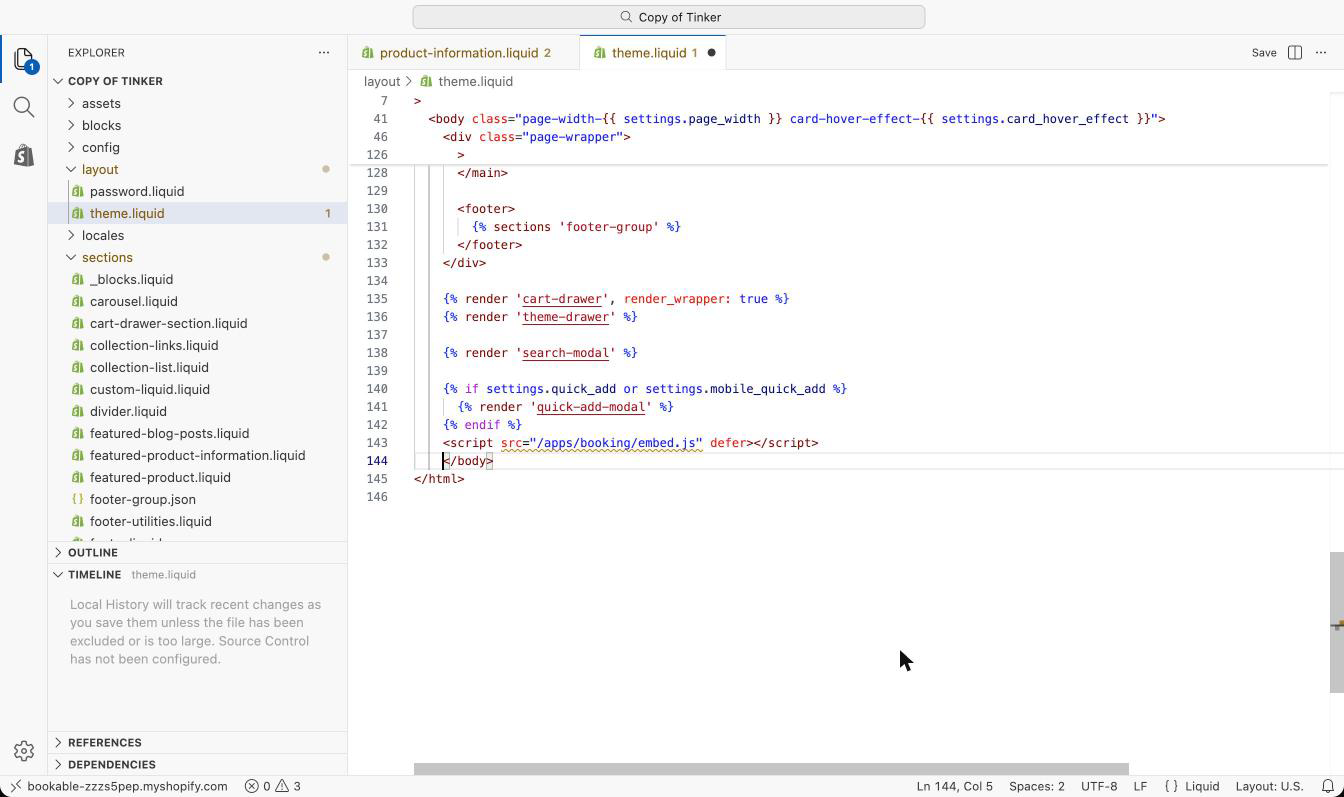
Check it on the store
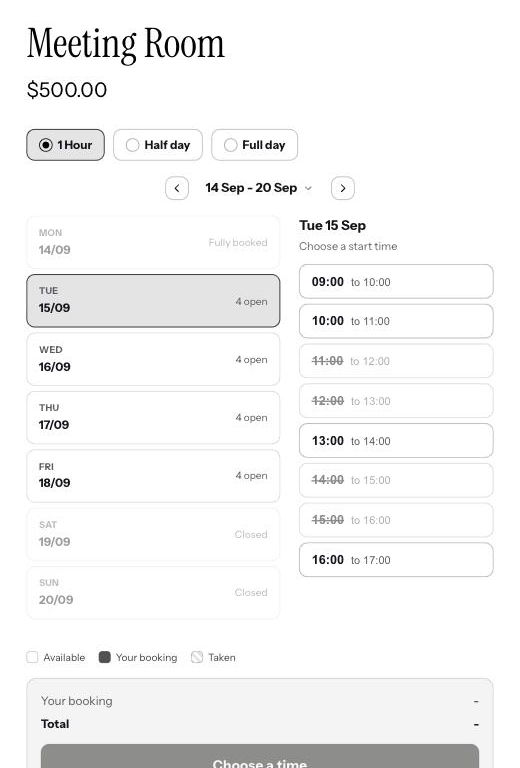
Open a bookable product on your storefront. The calendar should show, with free days you can click. If the page shows nothing where the calendar should be, the snippet is in the wrong place. Go back to the product section file. Then hide your theme add to cart, buy now, price, quantity and variant pickers on bookable products, the same as in the app block article. The calendar replaces all of them. Colours and the book button are set in the app under Appearance. When everything works, publish the copy.
Good to know
When should I use this instead of the app block?
When your theme has no app blocks, or when you want to choose exactly where the calendar sits. If your theme has app blocks, the app block is quicker.
Do I need the script in two places?
Yes. In the product section file so the calendar loads, and in theme.liquid so the cart guard runs on the cart page.
Can I paste it into the product description?
No. The description editor does not run the {{ product.id }} part, so the calendar is sent a blank product and shows nothing.
The calendar is blank. What now?
Either the snippet is in the wrong place, or the product is not set up in Booker yet. The Products page in the app shows which products are set up. Then check the snippet is in the product section file, under Sections.
Do I need to repeat this when I switch theme?
Yes. Theme code belongs to one theme, so a new theme starts without it. Do these steps again on the new theme, or use the app block if the new theme has one.