What Booker does
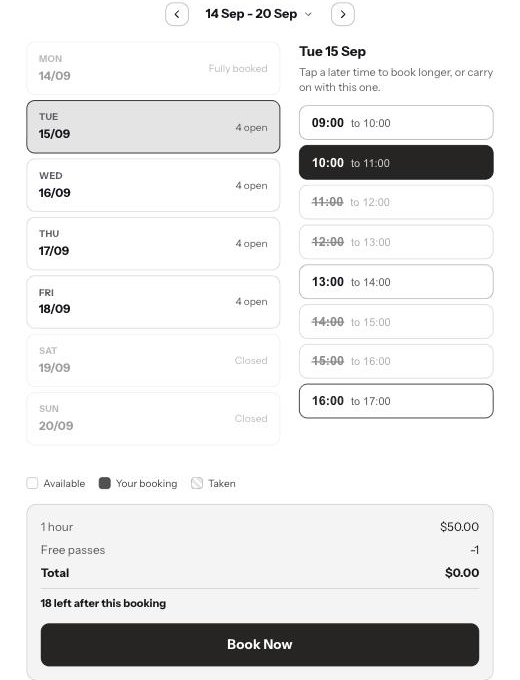
Booker turns a Shopify product into something people book by time. A customer opens the product page, sees when you are actually free, picks a slot, and pays at your normal checkout. That time is held while they pay and blocked once they have, so it is never sold twice.
The setup guide walks you through it
When you install Booker it opens a setup guide and works through one step at a time. You can leave it and come back; it remembers where you got to.
- 1Choose a plan
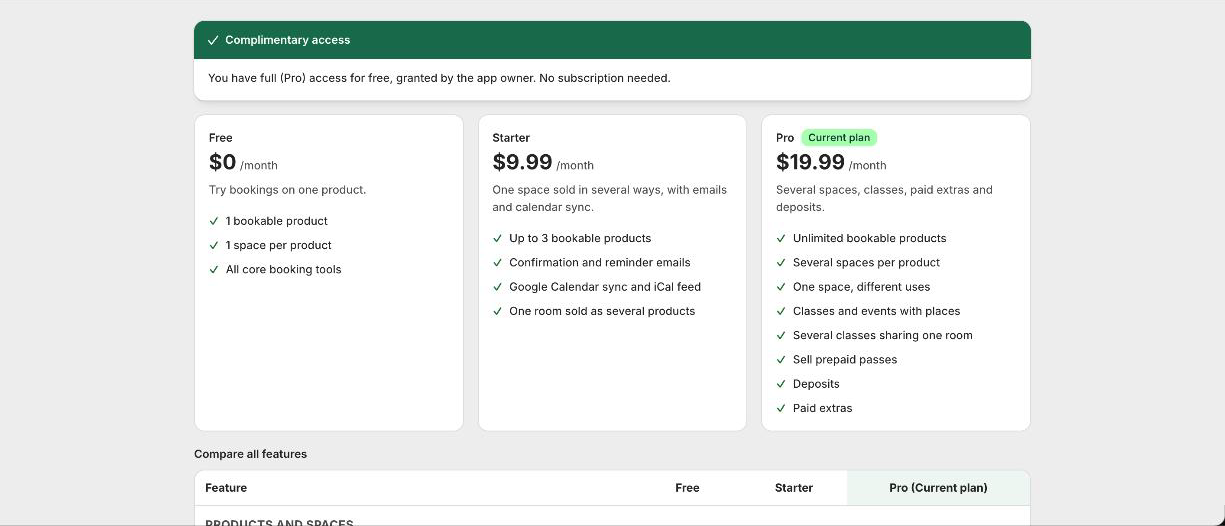
Start on Free to try it with one product, or pick Starter or Pro for more. You can change plan later.
- 2Set your opening hours
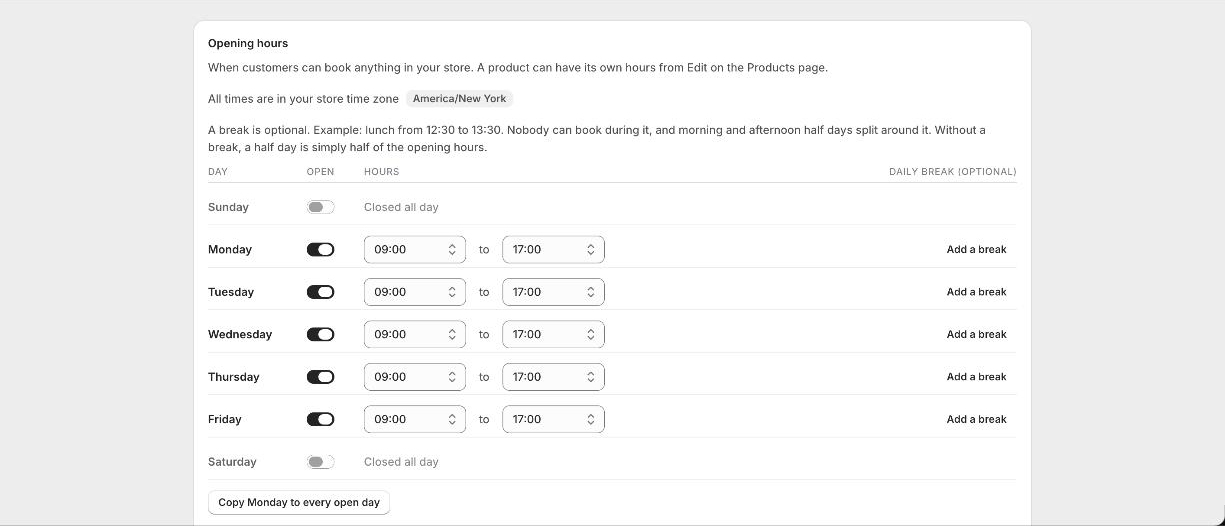
Say when you are open each day, for example Monday to Friday 09:00 to 17:00. Customers can only book inside those hours.
- 3Create your first bookable product
Pick what you are selling from a list of real examples, like a meeting room, a photography studio or a fitness class. Booker asks a few plain questions and creates the product for you. You can also convert a product you already sell.
- 4Add the calendar to your product page
Place the Booking Calendar block on your product template so customers see availability where they buy.
- 5Turn on the cart guard
One switch in your theme editor. It keeps a held time valid while the customer checks out.
- 6Turn on double-booking protection
Blocks checkout if someone else takes the time first. One switch, and it covers your whole store.
- 7Take a test booking
Book a slot yourself and watch it appear on your calendar and disappear from the product page.
Setting up a product
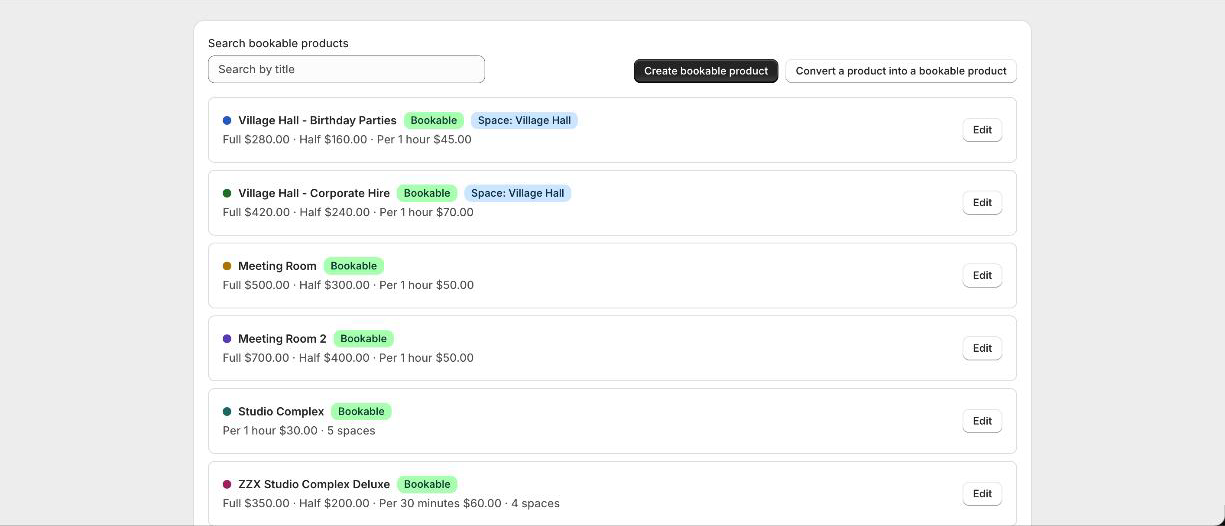
Most people never need the long form. Pick the closest example to what you sell and Booker asks only the questions that apply: what it is called, how customers book it, and what it costs. If none of the examples fit, choose Something else and you get the same questions one screen at a time, with every option available.
Good to know
Do I need a separate booking tool?
No. Booking and payment run on your existing Shopify checkout, so orders, customers and payouts work exactly as they do now.
Can I change things afterwards?
Yes. Everything is editable from the Products page. Open a product, read its setup top to bottom, and change any part of it.